



Modern SAP environments require extensibility without compromising upgrade safety or clean-core principles. This blog explains how the Custom Fields application enables organizations to extend standard SAP business contexts without modifying core tables. By replacing traditional append structures with a key-user driven, framework-based approach, Custom Fields allow new attributes to be activated across UIs, reports, APIs, and business scenarios with minimal technical effort. The article walks through core concepts, configuration steps, usage enablement, and advanced options such as Code Lists and CDS-based value helps, demonstrating how SAP systems can remain both flexible and upgrade-safe.
In modern SAP landscapes, the ability to extend standard objects without modifying the core is an essential requirement. SAP has addressed this need with the Custom Fields and Logic application which, since 2021, has been separated into two dedicated apps: “Custom Fields” and “Custom Logic”. In this blog, we will focus on Custom Fields, explore its key features and demonstrate how SAP business contexts can be extended with it.
The Custom Fields app represents the best-practice approach to extending standard business contexts such as master data, accounting, finance, sales, or procurement tables. In many cases, SAP users require their own custom field within a standard table. Historically, the only alternative was the classic Append Structure feature. However, in this approach the appended field was physically integrated into the standard table. This was not upgrade-safe and required developers to perform additional adaptations to make the field available in Dynpro screens, OData extensions, or reports.
This is exactly where one of the most valuable advantages of Custom Fields comes into play. Unlike the Append Structure approach, Custom Fields are part of the official Extensibility Framework, making them clean-core compliant and upgrade-safe. Even more importantly, they are significantly more practical: With just a few clicks, the field can be enabled for usage across a wide range of areas, including UIs and Reports, Email Templates, Form Templates, Business Scenarios, OData APIs, SOAP APIs, BAPIs, and IDocs. Because this process does not require extensive technical knowledge, it supports a true key user extension approach.
In the Fiori Launchpad, search for “Custom Fields” and open the app.
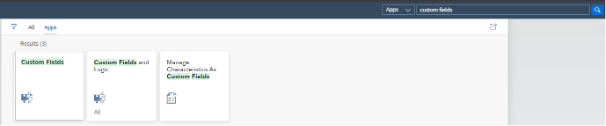
Here, existing custom fields are manageable. Press the “Create” button to create a new one.

On this screen, select your new field’s Business Context, Label, Identifier, Tooltip, Type
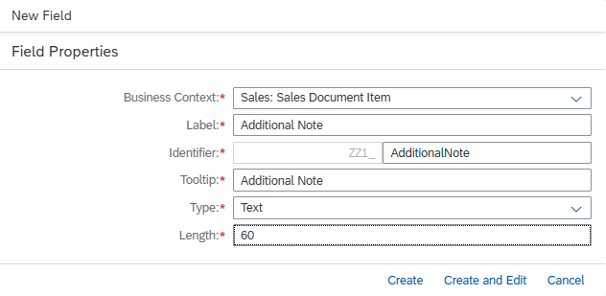
Business Context: Defines where your field belongs. Choosing the right business context ensures the custom field is linked to the correct SAP objects and applications. Each business context is tied to a CDS view and a database table defined by SAP.
Label: The translatable name visible to end users. Clear and descriptive labels help users understand the purpose of the field at a glance.
Identifier: A unique technical name automatically generated with the prefix ZZ1. This identifier is used across the database and CDS views to recognize the field system-wide.
Tooltip: Providing extra guidance. Tooltips give users a quick explanation of the field’s purpose, reducing errors and improving usability.
Type: Defines the data type. Options such as Text, Number, Phone Number, Date, Email Address, Checkbox, Code List… determine how the field stores data and validates input.
Once the Custom Field is created, usage enabling options are available with specific data sources,

when the desired usage is enabled then Custom Field should be published in order to be ready to use
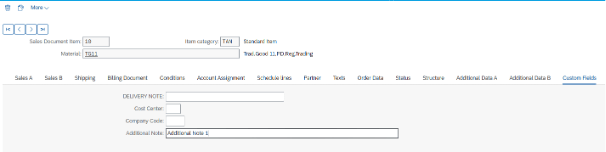
Now the Custom Field is visible and functional in related contexts.
Custom Fields are not limited to basic data entry. Two powerful data type options make them especially practical: Code List and Code List with Custom CDS Views.
Code List: Provides predefined value help for a custom field. Instead of free-text input, the field displays a search help list where users can select from a fixed list of codes and descriptions.
Code List with Custom CDS View: For more advanced scenarios, the Code List with Custom CDS View option allows you to generate the value help dynamically from a CDS view. This makes it possible to reflect business-specific rules, apply filters, or combine data from multiple sources. In other words, instead of relying on a static domain, the field’s values adapt to your business logic while staying fully upgrade-safe.
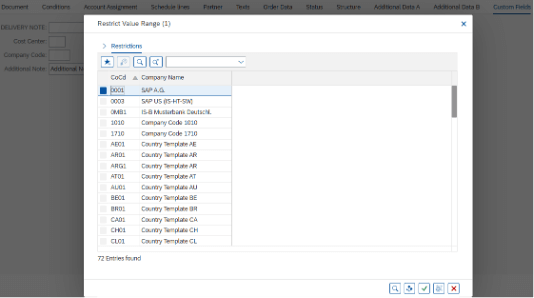
With these capabilities, Custom Fields stand out as a powerful yet simple way to keep your SAP system adaptable and aligned with evolving business needs.

Intern SAP ABAP/ Fiori Developer
Your mail has been sent successfully. You will be contacted as soon as possible.
Your message could not be delivered! Please try again later.